
Outlook, working as hard as your field team
AI scans your Outlook for bills, invoices, receipts, lien waivers, and more, then routes everything to the right project automatically. No forwarding required.
Join WaitlistConstruction AI OS
Bid → build → paid, with Outlook still the inbox
Sledge is the construction AI operating system, in open beta. Connect Outlook and the bills, invoices, and lien waivers that land in it turn into project records without anyone forwarding them.
Outlook stays the inbox. Sledge runs the job.
How Sledge works with Outlook

AI finds what matters
Sledge scans Outlook automatically for bills, invoices, receipts, waivers, POs, and change orders.
Every detail extracted
Vendor, amount, dates, line items, and document type pulled from PDFs, images, and email bodies.
Routed to the right project
Sledge learns your jobs and vendors, then files every document where it belongs.
Nothing slips through
Documents buried in threads or attachments are surfaced, structured, and tracked.
What Sledge pulls from Outlook
Sledge reads the Outlook or Microsoft 365 inbox you connect, from the start date you choose, and picks out the construction paperwork.
Scan, no forwarding
Sledge scans Outlook for bills, invoices, receipts, lien waivers, purchase orders, and change orders. No forwarding is required.
Extracted fields
Vendor, amount, dates, line items, and document type are pulled from PDFs, images, and email bodies.
Filed to the job
Sledge learns your jobs and vendors and files each document to the right project, including documents buried in threads or attachments.
Reviewed, then approved
Captured bills wait for a person to review and approve them. Once approved, they can be paid in Sledge and sent to QuickBooks if it is connected.
What stays in Outlook
Sledge structures and files job documents. Your mailbox stays in Microsoft.
Your conversations
Email stays in Outlook. Sledge copies out the documents it needs and leaves the thread where it is.
Your mail client
Keep reading and writing mail in Outlook on any device.
Microsoft 365 controls
Your Microsoft admin and retention policies stay in Microsoft.
Setup
Connect an Outlook inbox in a few clicks.
- 1
Open Connectors
In Sledge, open Settings, then Connectors, then Outlook, and click Connect.
- 2
Authorize Microsoft
Sign in with your Outlook or Microsoft 365 account and approve access. Sledge requests Mail.ReadWrite and Mail.Send, which let it read mail and send the replies you write in Sledge.
- 3
Pick a start date
Choose the date Sledge should start processing email from. Nothing is read until you set it.
- 4
Review in Sledge
Captured documents show up in Sledge as structured records, ready to review and approve.
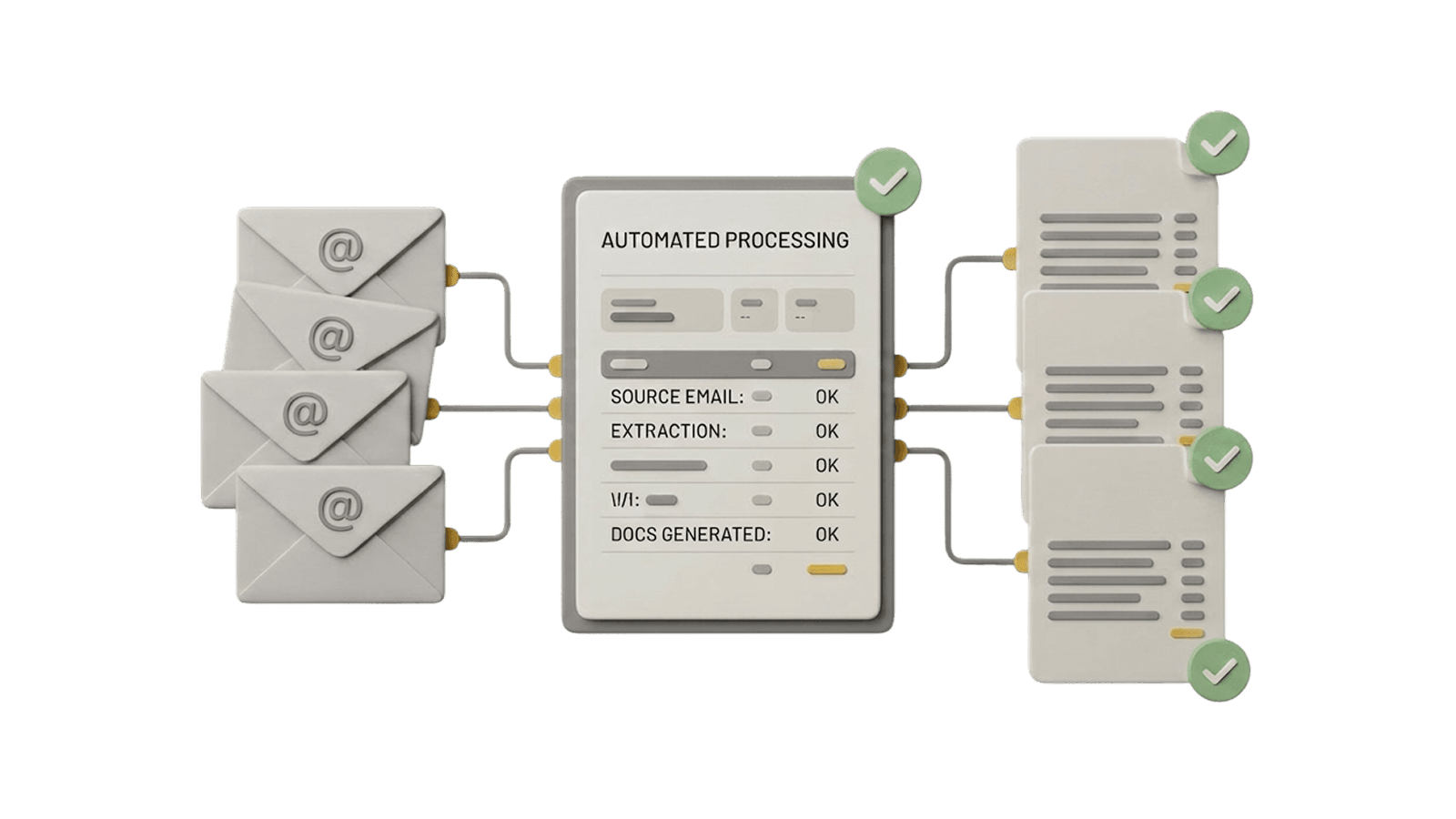
What changes with Outlook on autopilot
Stop digging through email
Every document is captured the moment it arrives.
No more document backlog
Bills, waivers, and invoices processed on arrival, not at month-end.
Your inbox stops being a project management tool.
Because it never should have been.