Automate your financial workflows with AI-powered QuickBooks integration
Sledge uses AI to categorize transactions, generate invoices, and keep your financial data in sync with QuickBooks automatically.
Join WaitlistConstruction AI OS
Bid → build → paid, with QuickBooks still the books
Sledge is the construction AI operating system, in open beta. Sledge runs the job, and QuickBooks Online keeps the books your accountant already closes. Approved work flows into QuickBooks so nobody keys it twice.
QuickBooks stays the books. Sledge runs the job.
How Sledge works with QuickBooks
Two-way sync with QuickBooks Online
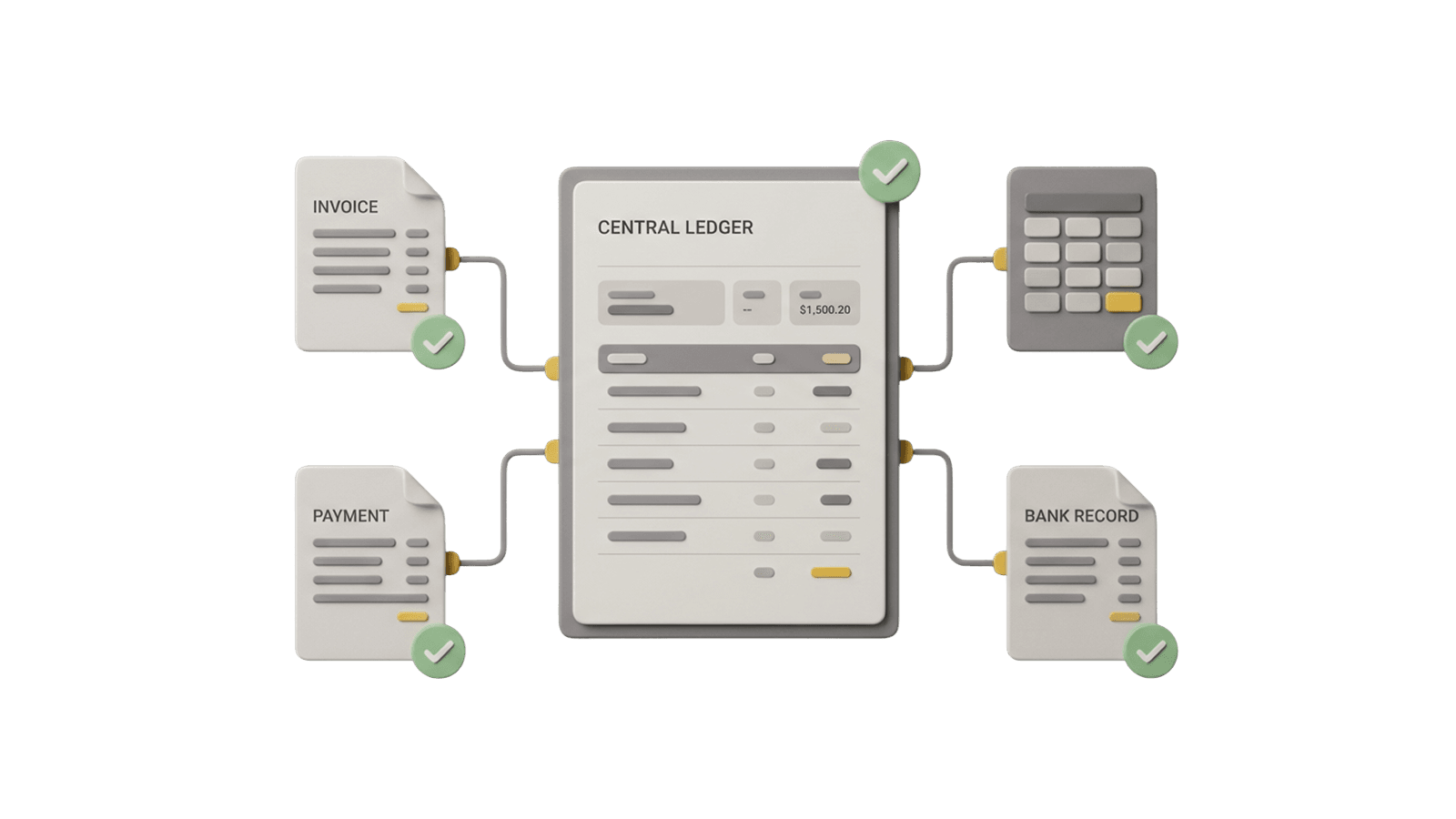
Approved bills, bill payments, client invoices, and customer payments go to QuickBooks. Accounts, items, vendors, and customers come back.
AI maps every transaction
Sledge learns your chart of accounts and applies it automatically instead of manual coding.
Cost codes that tie out
Each cost code maps to a QuickBooks item, so every approved bill line lands on the right item and account.
Catch errors before they sync
AI flags duplicates, missing accounts, and mismatched vendors before they hit your books.
What syncs
Sledge connects to QuickBooks Online and moves records in both directions.
Approved bills, with the PDF attached
Approved bills are pushed to QuickBooks against the right vendor, with the source invoice attached. Bills that have not been approved are never sent.
Bill payments
Vendor payments made in Sledge are recorded in QuickBooks as bill payments against the matching bill.
Invoices and customer payments
Approved client invoices are pushed to QuickBooks, and the payments your clients make against them are recorded there too.
Vendors and customers
New vendors and customers in Sledge are added to QuickBooks, and the ones already in QuickBooks are pulled into Sledge.
Chart of accounts and items
Sledge pulls your accounts and products and services from QuickBooks, so every bill line is coded against the list your accountant maintains.
Cost codes
Map each Sledge cost code to a QuickBooks item once, and bill lines with that cost code use the item automatically.
What stays in QuickBooks
Sledge runs the job. The books stay where your accountant already closes them.
The general ledger and the close
QuickBooks stays the system of record for the books. You reconcile and close the month in QuickBooks.
The chart of accounts
Your accounts and items are managed in QuickBooks. Sledge reads them and codes against them.
Reports, bank feeds, and taxes
Financial reports, bank feeds, and tax filings stay in QuickBooks.
Setup
Connecting QuickBooks Online takes a few clicks.
- 1
Open Connectors
In Sledge, open Settings, then Connectors, then QuickBooks.
- 2
Connect
Click Connect. Sledge sends you to Intuit to authorize access.
- 3
Pick the right company
Sign in to Intuit with the QuickBooks Online company you want Sledge to use before you authorize.
- 4
Approve and sync
Sledge pulls your accounts, items, vendors, and customers. From then on, push approved bills, invoices, and payments to QuickBooks from Sledge.
Work faster with fewer errors
Open QuickBooks with books already reconciled
Push approved bills and payments to QuickBooks in one step, so they are there when you sit down to close.
No more double entry
Field activity flows straight to your accountant, untouched.
Your accountant stops asking questions
Clean data, correct mapping, every time.